Remove Background from Image Free — Keep Original Resolution
Free, No sign-up · Original resolutionRemove an image background free with no sign-up, then download the cutout at your original image resolution. Need more pixels? Upscale 2×–4× in the same workspace.
Make the edges look right at the size you will use
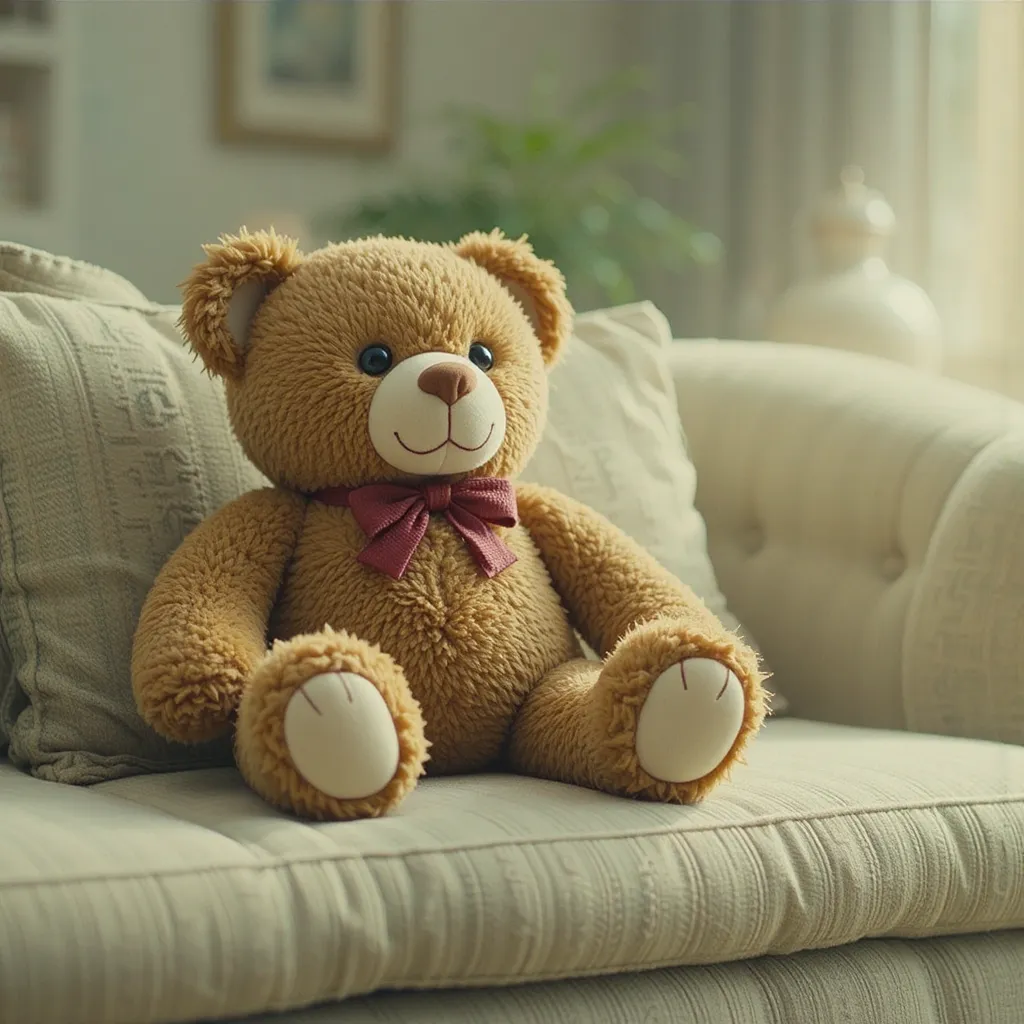
Review notes
Upload a clear source image with the full subject visible. Background removal is automatic, so no written prompt is needed.
Remove the background with no sign-up, then download the cutout at the same resolution as your source image.
Switch to Upscale image for detail enhancement. Free access is available after sign-up, with a clear 12MP output limit.
Use the removed-background result as the starting point for a new scene, product listing, profile image, presentation, or design.
Review hair, fur, transparent material, glass, reflections, fine straps, text, and shadows at the size you will publish.
Check every cutout before you use it
Hair, fur, lace, glass, smoke, motion blur, reflections, translucent fabric, and thin straps can leave uncertain or missing edge detail.
When several people, objects, overlapping products, or similar colors compete in one image, the intended subject boundary may not be obvious.
Background removal does not replace art direction, relighting, contact shadows, color matching, retouching, or output review for the new destination.
Confirm the delivered file supports transparency before placing it on a new background, especially when moving between editors, marketplaces, and social tools.
Only upload images, people, products, brands, and creative work you are authorized to use, and review the final result before publishing it.
How this page was reviewed
Written by giz.ai Product Team · Reviewed by giz.ai Model Operations · Updated 2026-08-14
giz.ai publishes this background remover and image upscaler page about its own product. Model names, inputs, controls, access, and plan requirements come from the live giz.ai catalog; examples and editorial guidance explain practical use without promising flawless output.
- Match the background remover and image upscaler default, offered models, and example inputs to active giz.ai model contracts.
- Run the public form through model selection, example application, and the canonical Assistant handoff.
- Review representative soft-texture, product-edge, and portrait source images against the upload-first contract, original-resolution background-removal flow, and image-upscale limits.
- Verify one canonical URL, visible FAQs, structured data, internal links, desktop layout, and mobile layout.
Free background remover FAQ
Can I remove an image background free without signing up?
Yes. Background removal is free with no sign-up. Upload an image, remove the background, and download the cutout at the same resolution as your original image.
Do I need to write a prompt?
No. The uploaded image is the required input and the background is removed automatically. A clear source image with the full intended subject visible gives you the most useful result to review.
Is image upscale free too?
Yes, with a giz.ai account. The free plan includes two image-upscale runs every 24 hours. Choose 2× for photos and use 3×–4× for smaller images; output is limited to 12MP.
What should I inspect after background removal?
Inspect the exact edges that matter in the final use: hair, fur, fingers, straps, fabric, glass, reflections, labels, text, thin objects, and any contact shadow near the subject.
Will the result have a transparent background?
The tool is designed to isolate the subject from its background. Before placing the result into another design or marketplace, confirm that the delivered file and destination both support transparency.
Can I use it for ecommerce product photos?
Yes, product photos are a common fit when you need an isolated item for a listing, catalog, campaign, or new background. Review handles, seams, reflective surfaces, packaging, labels, and natural shadows before publishing.
Can it remove every kind of background perfectly?
No. Fine hair, fur, transparent materials, smoke, glass, motion blur, low contrast, similar colors, overlapping objects, and busy scenes can make a subject boundary ambiguous. Always inspect the result at its intended display size.
Can I add a new background after removal?
Yes. Use the cutout as an input to the AI Image Editor when you need a replacement background, retouching, relighting, a campaign composition, or another controlled visual edit.
Who can use the images I upload?
Use images you are authorized to process. giz.ai data handling, retention, and user-choice terms are described in the current privacy policy, while acceptable use and rights responsibilities are described in the terms of use.